
How to find duplicates in Excel before you delete anything
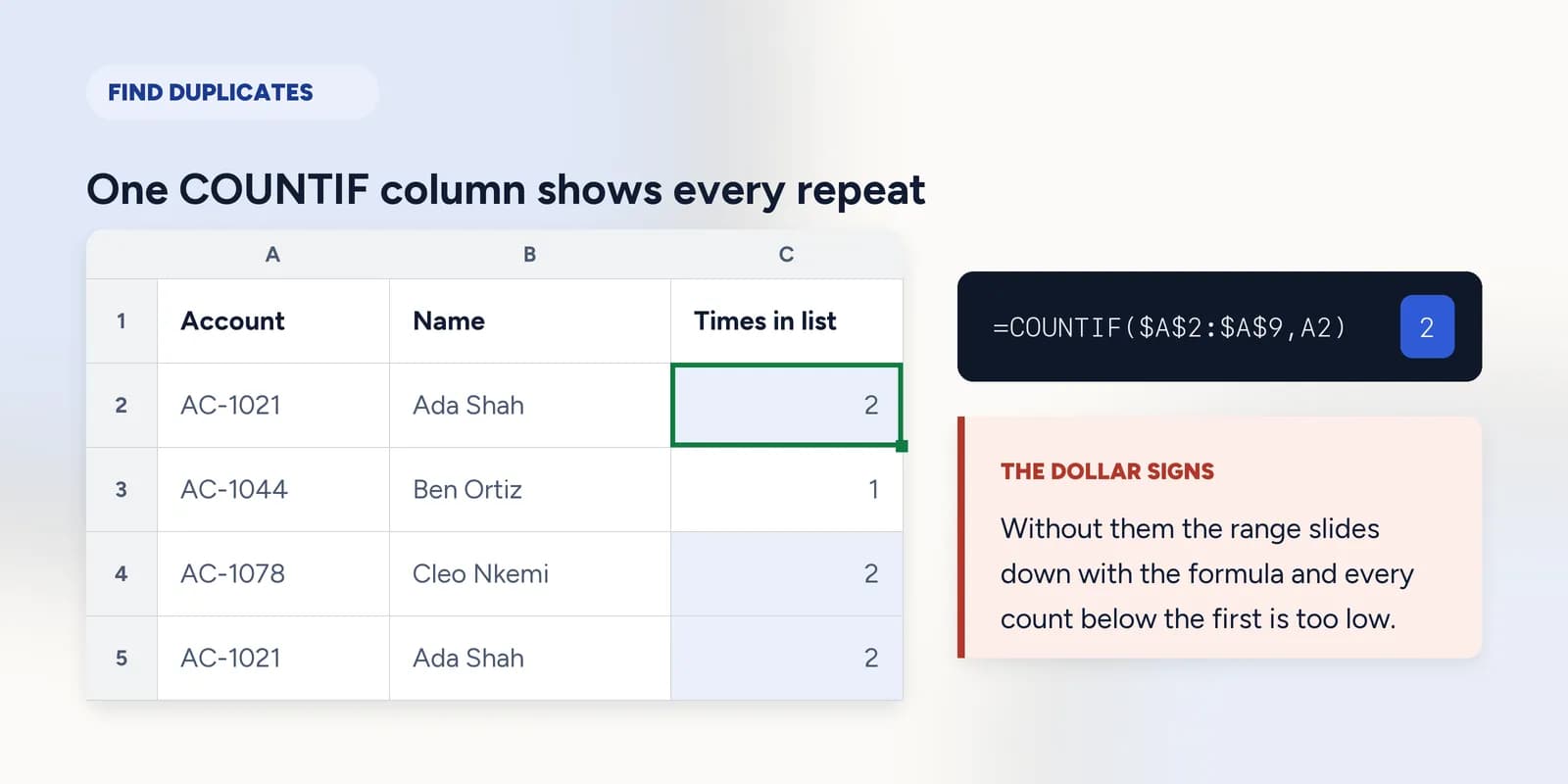
Put =COUNTIF($A$2:$A$9,A2) beside the first row and fill it down. Any row showing a number greater than 1 appears more than once, and the number is how many copies there are. The dollar signs matter: without them the range slides down with the formula and every row counts a different, shorter list.

Finding duplicates and removing them are two different jobs, and doing them in that order is the whole trick. Remove Duplicates deletes without a preview; a COUNTIF column shows you precisely what it is about to take, costs one formula, and can be left in the sheet afterwards as a running check.
It also answers the question that Remove Duplicates cannot, which is how many copies there are. Two rows the same is a typo. Nine rows the same is a broken import, and those want different fixes.
One formula, filled down
COUNTIF takes a range and a value and returns how many cells in that range hold it. Point it at the whole column and ask it about the row you are on, and you get a count of copies for every row at once.
| A | B | C | |
|---|---|---|---|
| 1 | Account | Name | Times in list |
| 2 | AC-1021 | Ada Shah | 2 |
| 3 | AC-1044 | Ben Ortiz | 1 |
| 4 | AC-1078 | Cleo Nkemi | 2 |
| 5 | AC-1021 | Ada Shah | 2 |
| 6 | AC-1095 | Dev Rao | 1 |
| 7 | AC-1102 | Eli Fontes | 1 |
| 8 | AC-1078 | Cleo Nkemi | 2 |
| 9 | AC-1113 | Fay Lindqvist | 1 |
=COUNTIF($A$2:$A$9,A2)The first row. Ada's account appears twice in the list, so this returns 2 rather than 1.
Sort or filter by that column and the duplicates come together at the top, which is usually all anybody wanted. The column keeps working as rows are added, so it is worth leaving in place on a list that is still being typed into.
How many duplicates are there altogether
Two different questions get asked and they have different answers: how many rows are involved in a duplication, and how many rows would actually be deleted if you removed them. The first is four, the second is two, because Remove Duplicates keeps the first copy of each.
=COUNTIF(C2:C9,">1")Four rows are part of a duplicate pair. That is the number of rows affected, not the number that would go.
For the second, lock only the start of the range and let the end grow with the formula. COUNTIF over $A$2:A5 asks how many times this value has appeared so far, counting from the top, so the first copy of anything returns 1 and every later copy returns 2 or more.
=COUNTIF($A$2:A5,A5)Row 5 is the second time AC-1021 has appeared, so this returns 2. Filled down the column, every row showing more than 1 is a row Remove Duplicates would delete.
=COUNTIF($A$2:A3,A3)The same formula three rows up. AC-1044 has not been seen before, so it returns 1 and the row would be kept.
Why it says unique when you can see two the same
COUNTIF compares what is in the cells, not what is on the screen, and three differences are invisible.
- A trailing space. "AC-1021 " and "AC-1021" are different values and look identical. TRIM over the column is the fix, and LEN confirms the diagnosis before you make it.
- A number stored as text in one row and as a real number in another. ISNUMBER down the column finds these.
- Capitals are not one of them: COUNTIF ignores case, so ADA and Ada count as the same value. That is usually what you want, and when it is not, EXACT is the function that compares capital for capital.
The exercise uses this exact shape: a staff list, a locked range, and a count that has to be right on every row rather than just the first.
Audit duplicate account numbers
Use COUNTIF with a locked range to find repeated account IDs in an employee list. · 5 min · Free account
What goes wrong
These are the four mistakes that come up again and again. Each one is reasonable. That is why people make it.
Leaving the range relative
WhyThe first row returns the right answer, which is the row you check, and the counts below it are plausible small numbers rather than errors.
InsteadLock it with dollar signs: $A$2:$A$9. Then check the bottom row of the column as well as the top.
Deleting duplicates without counting first
WhyRemove Duplicates is quicker and reports a tidy number of rows removed, which sounds like confirmation.
InsteadAdd the COUNTIF column, look at what is about to go, then delete. Ctrl+Z only works until the file is closed.
Concluding the list is clean because COUNTIF found nothing
WhyA column of ones looks like proof, and the two rows you can see as identical make it look like the formula is broken.
InsteadCheck for invisible differences first. Run TRIM, and compare LEN on the two rows that look the same.
Looking for duplicate rows with a single-column COUNTIF
WhyOne column is usually the identifier, so counting it feels like counting rows.
InsteadJoin the columns that define a duplicate before counting: COUNTIF over a helper column of A2 & "|" & B2 answers the question you actually asked.
Common questions
How do I find duplicates in Excel without deleting them?
Add a column of =COUNTIF($A$2:$A$9,A2) and fill it down. Any row with a number greater than 1 is a duplicate, and the number is how many copies exist. Nothing is changed or removed.
What is the formula to find duplicates in Excel?
=COUNTIF($A$2:$A$9,A2), with the range locked by dollar signs and the second argument pointing at the current row. To flag them as words, wrap it: =IF(COUNTIF($A$2:$A$9,A2)>1,"Duplicate","Unique").
Why does COUNTIF say a value is unique when I can see it twice?
Almost always a trailing space on one of them, or a value stored as text in one row and as a number in the other. Compare LEN on the two cells, and run TRIM over the column.
How do I find duplicate rows rather than duplicate cells?
Build a helper column joining the fields that define a duplicate, such as A2 & "|" & B2, then run COUNTIF over that. A row is a duplicate only when the whole combination repeats.
Is COUNTIF case-sensitive?
No. ADA and Ada are counted as the same value, which is usually what you want for names and codes. EXACT is the function that compares capital for capital when the difference genuinely matters.