
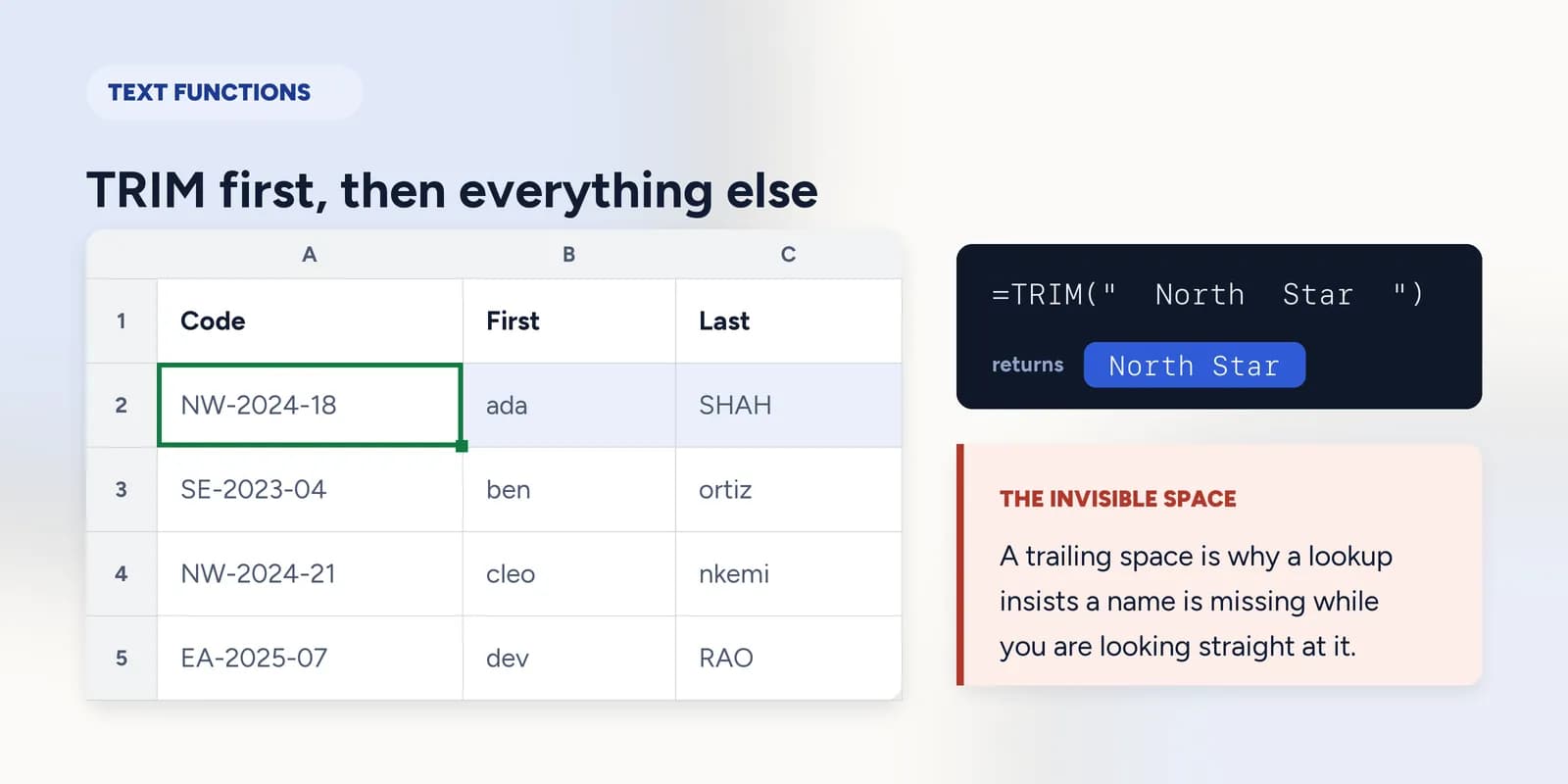
Text functions, for data that arrived in the wrong shape
Text functions cut, join and clean text that arrived in the wrong shape. TRIM removes stray spaces, LEFT, MID and RIGHT pull out characters by position, CONCAT or the & operator join values together, and SUBSTITUTE swaps one piece of text for another. TRIM is the one to reach for first: an invisible trailing space is the usual reason a lookup reports a name as missing when it is plainly in the list.

A great deal of real spreadsheet work is not calculation at all. It is repairing data that arrived from somewhere else: a column that should have been three, names typed by four different people, a code with a prefix you need and a suffix you do not.
The first function here is the one to know even if you learn nothing else in this part. TRIM is the answer to the most maddening question in Excel, which is why a lookup is telling you a name is missing while you are looking straight at it.
TRIM, and the invisible space
A trailing space is a real character and cells are matched character by character, so "North " and "North" are two different values to every lookup and every comparison in Excel. Nothing on screen distinguishes them. The cell looks identical, the eye confirms the name is right there, and the formula keeps returning #N/A.
=TRIM(" North Star ")Spaces stripped from both ends and runs inside collapsed to one. The single space between the words survives, which is what you want.
TRIM does not remove every kind of whitespace. Data pasted from a web page often carries a non-breaking space, which TRIM leaves alone because it is technically a different character. SUBSTITUTE with CHAR(160) is the usual second pass when TRIM has not worked.
Splitting by position: LEFT, MID and RIGHT
When a code has a fixed shape, you can pull its parts out by counting characters. LEFT takes from the start, RIGHT from the end, and MID from a position you name. Counting starts at 1, not 0.
| A | B | C | |
|---|---|---|---|
| 1 | Code | First | Last |
| 2 | NW-2024-18 | ada | SHAH |
| 3 | SE-2023-04 | ben | ortiz |
| 4 | NW-2024-21 | cleo | nkemi |
| 5 | EA-2025-07 | dev | RAO |
=LEFT(A2,2)The region prefix: the first two characters.
=MID(A2,4,4)The year: four characters starting at position 4, counting the hyphen as a character.
Joining, and fixing the capitals
The ampersand joins text, and CONCAT does the same thing in function form. Neither adds a space, so the space between a first name and a surname has to be supplied explicitly as a quoted string.
=PROPER(B2) & " " & PROPER(C2)Joined, with the capitalisation repaired on the way through. The data had ada and SHAH; neither is what you want on a letter.
PROPER capitalises the first letter of every word, which is right for most names and wrong for a few: it will give you Mcdonald and O'brien. UPPER and LOWER are blunter and more predictable. There is no function that knows about surnames, and a short exception list beside the data is the honest fix.
TEXTJOIN is the one of these that takes a range rather than a list of arguments, which makes it the right tool when you want a whole column as one comma-separated line. Its second argument decides whether blanks are skipped, and the answer is usually yes.
What goes wrong
These are the mistakes this part exists to prevent. Each one is reasonable, which is why people make it and why nothing on the sheet objects.
Debugging a lookup before checking for spaces
WhyThe name is visibly in the list, so the lookup looks like the broken thing and the data looks fine.
InsteadRun LEN over both cells first. If the counts differ, wrap the lookup value in TRIM and the problem disappears.
Splitting a variable-length code by position
WhyIt works perfectly on the first few rows, which are usually the ones you check, and the failures produce plausible-looking fragments rather than errors.
InsteadFind the separator with FIND or SEARCH and cut relative to it, so the formula adapts to each row's length.
Expecting & to add a space
WhyJoining two words in English puts a space between them, and the result, AdaShah, reads as a formatting glitch rather than as exactly what was asked for.
InsteadInclude the space yourself: A2 & " " & B2. Everything in a join is literal.
Common questions
What does TRIM do in Excel?
It removes spaces from both ends of the text and collapses any run of spaces inside it down to one. It is the standard first move when a lookup or a comparison fails on values that look identical.
How do I split text in Excel without Text to Columns?
Use LEFT, MID and RIGHT when the format is fixed-width, and combine them with FIND when it is not, as in =LEFT(A2, FIND("-",A2)-1) to take everything before the first hyphen.
What is the difference between CONCAT and CONCATENATE?
CONCAT is the newer name and also accepts ranges. CONCATENATE is the older one, kept because older workbooks are full of it. The & operator does the same job in less space and is what most people use.
What is the difference between SUBSTITUTE and REPLACE?
SUBSTITUTE swaps text by content, replacing every copy of what you name. REPLACE swaps by position, changing a given number of characters starting at a given point.
Why does my VLOOKUP say #N/A when the value is clearly there?
Nine times in ten it is a trailing space on one side or the other, and sometimes a number stored as text on one side and as a real number on the other. Wrap the lookup value in TRIM and check both columns with ISNUMBER.